Add a webhook
Adding a webhook
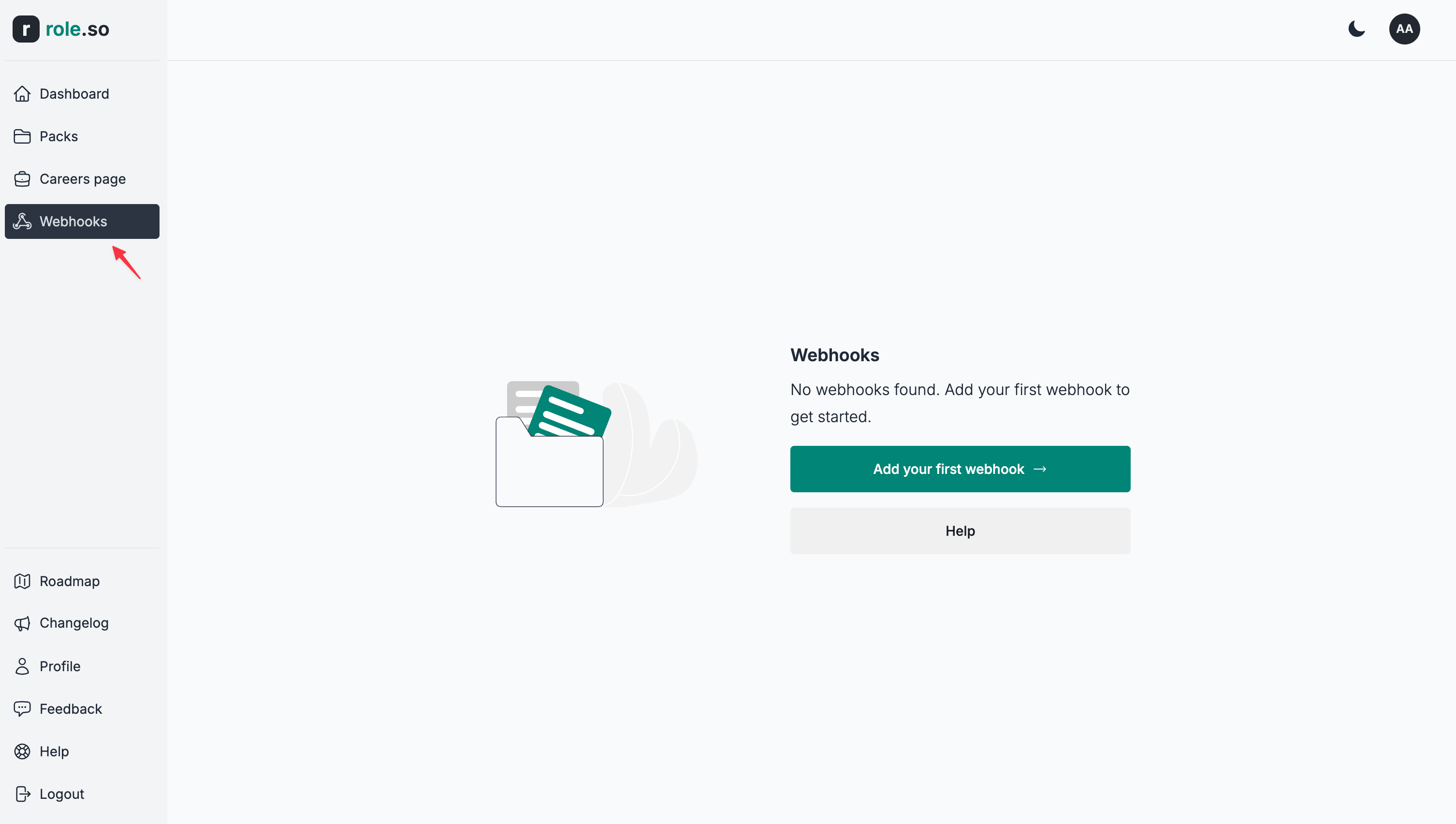
- Navigate to the Webhooks section
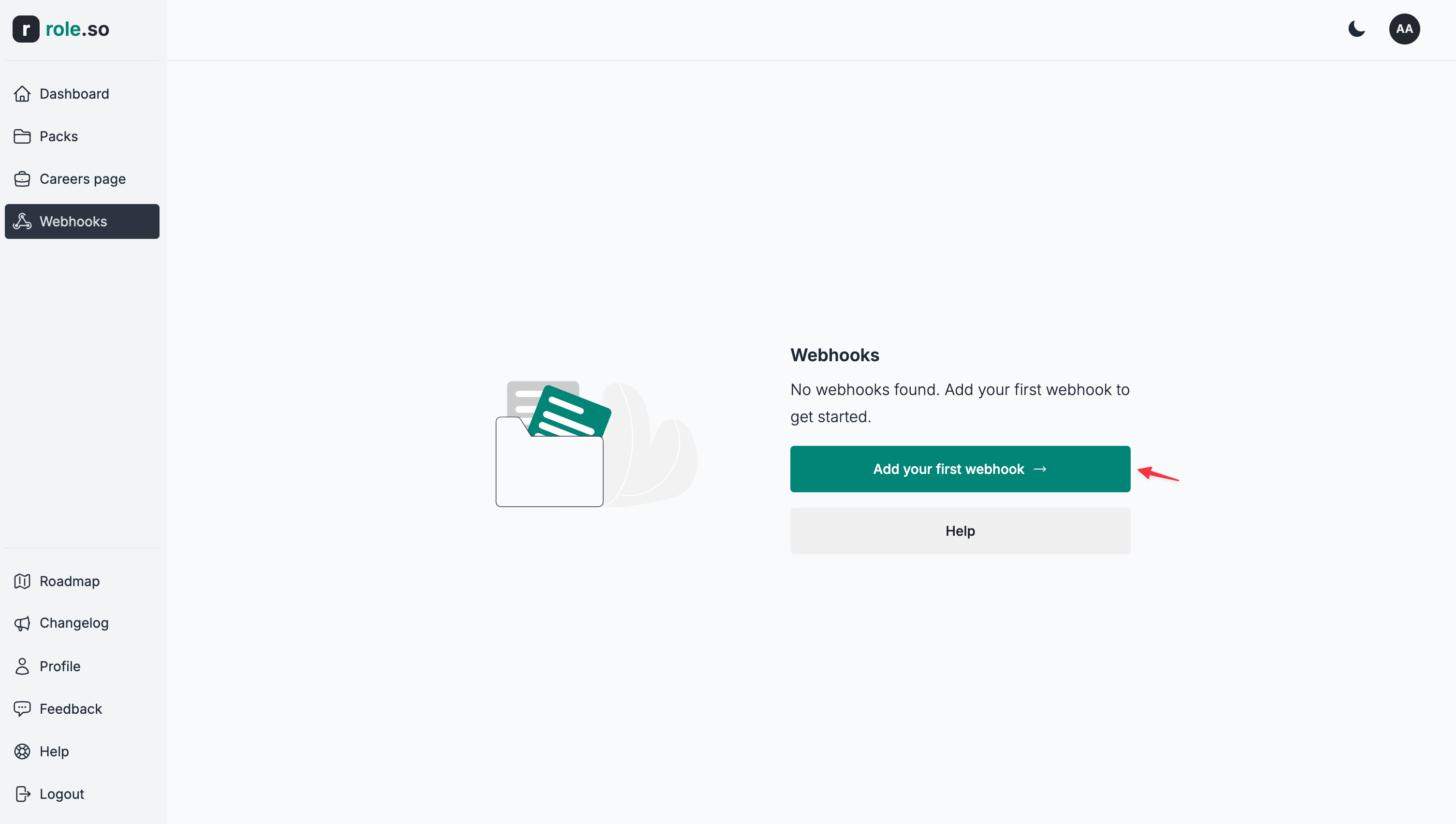
- Click the
Add your first webhookbutton
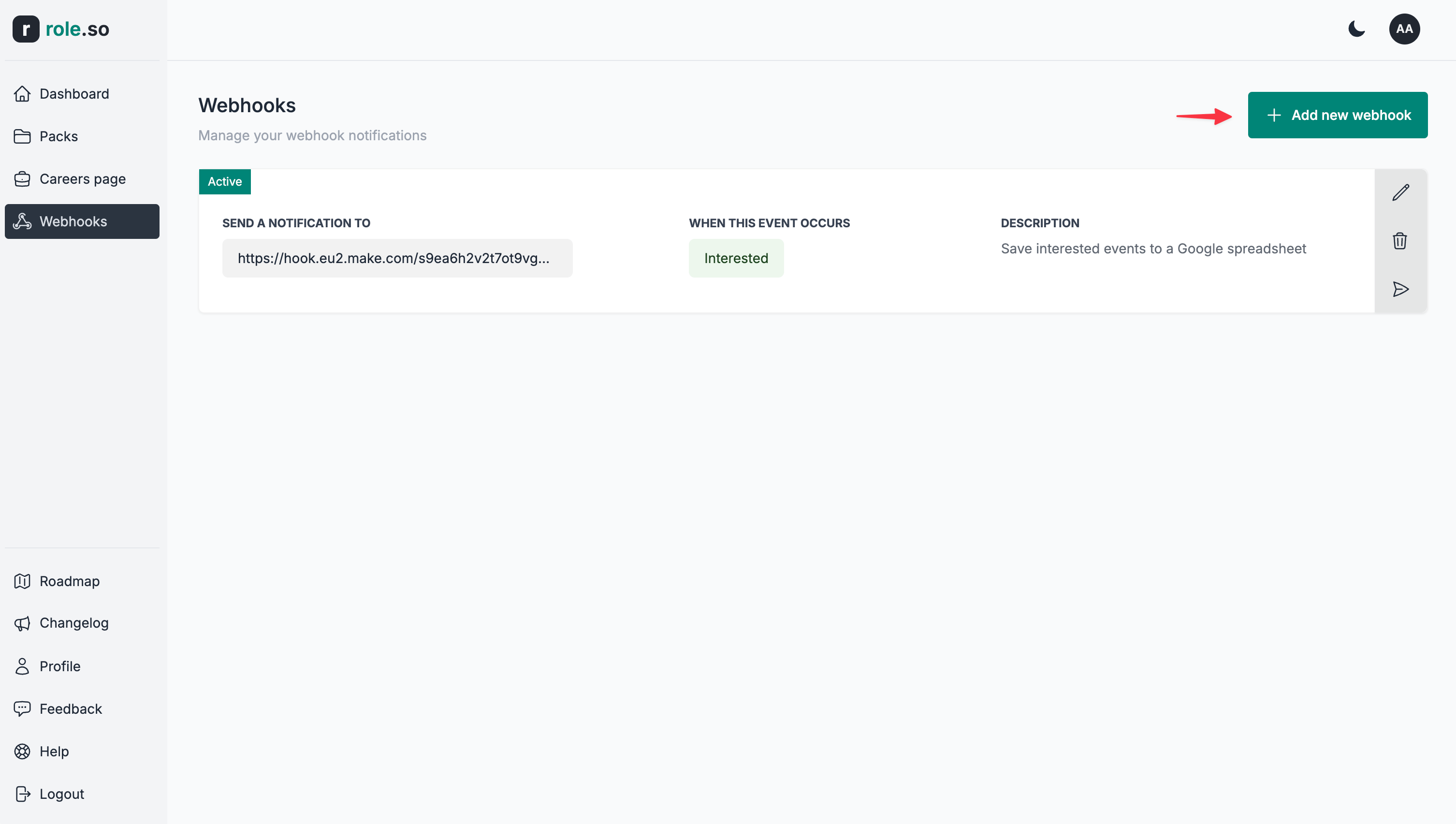
If you already have a webhook, the Add new webhook button will be shown on the top right corner of the page
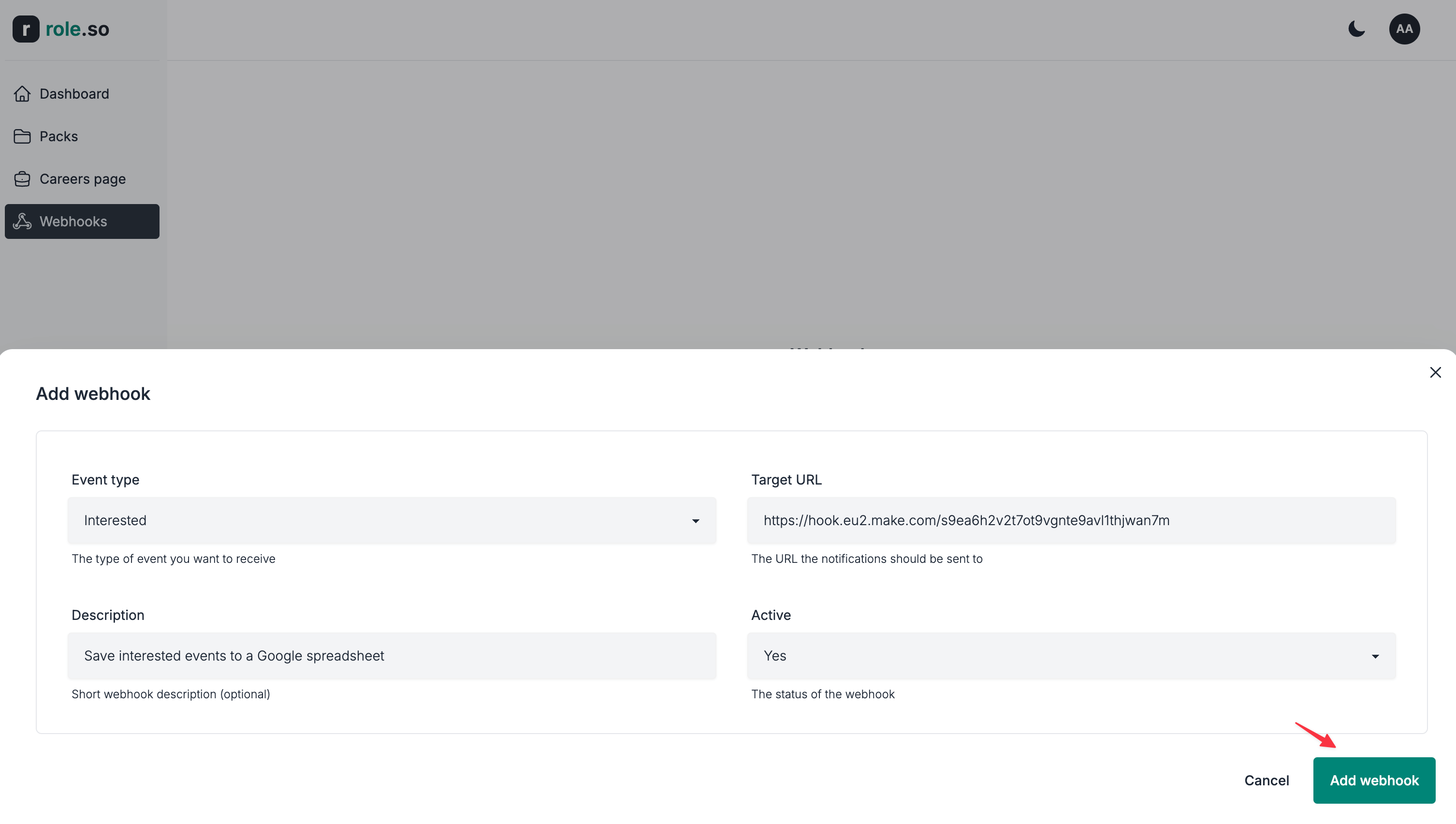
- You'll be presented with a form. Fill in the details, as follows:
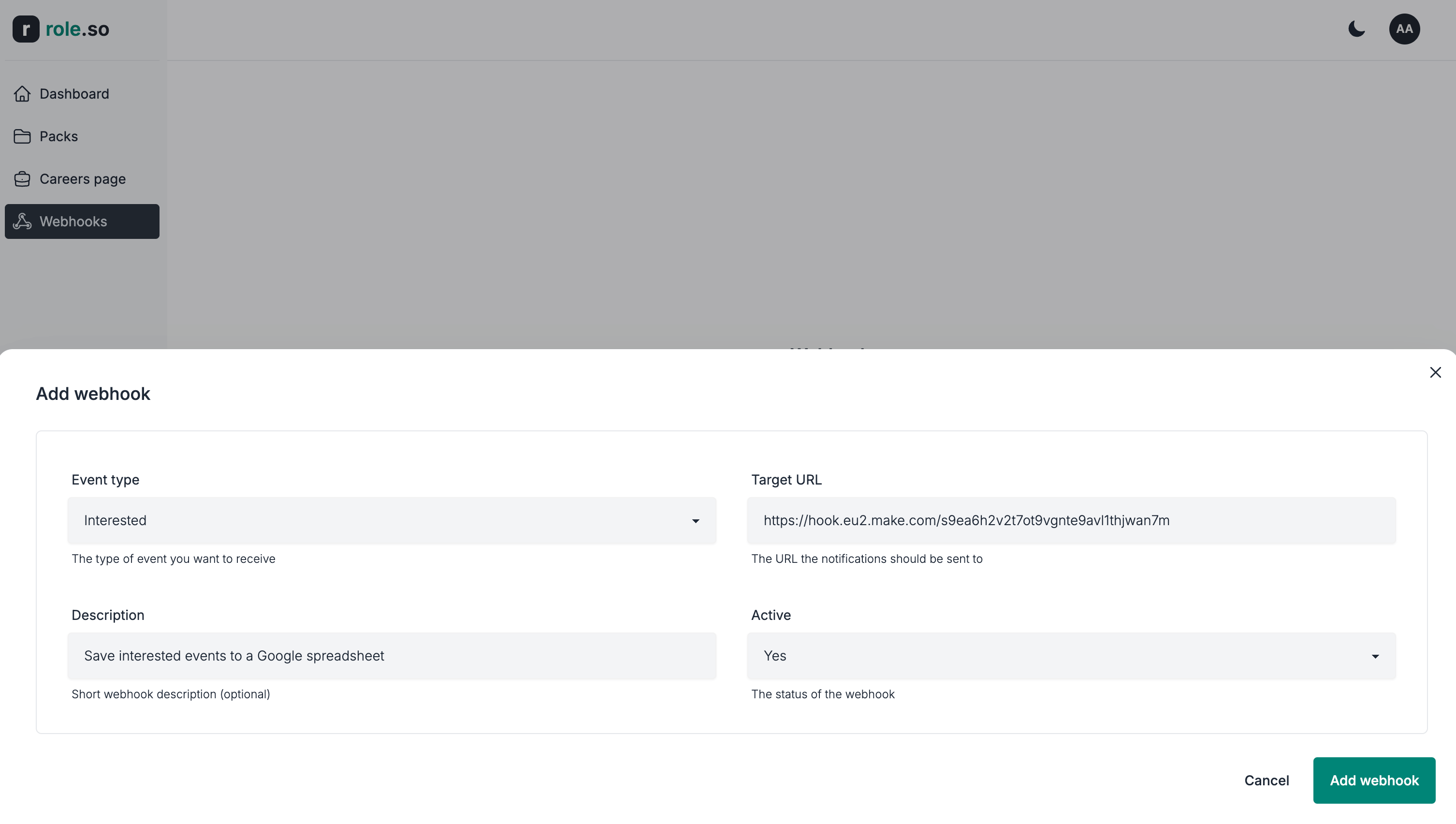
- Event type: The type of event you want to receive. Select from
InterestedorDeclined. - Target URL: The URL the notifications should be send to.
- Description: (Optional) A short description of the webhook
- Active: The status of the webhook. Select from
YesorNo. Notifications/events will be sent only to active webhooks.
- Click the
Add webhookbutton to save your changes