Section options
Almost every section on the candidate pack editor page share some common options, as described below.
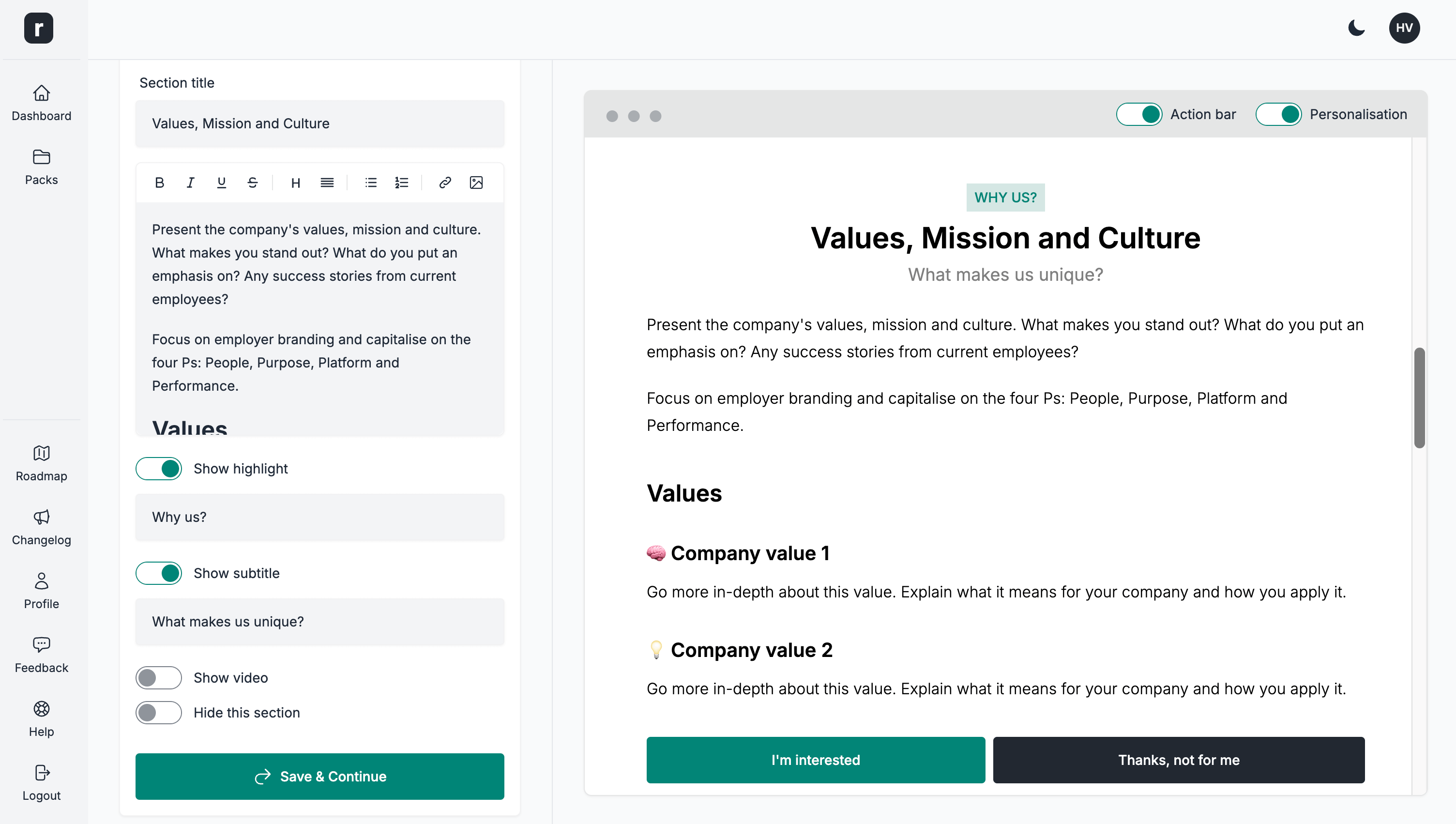
Title
- Type: Short text input
- Usage: Add the section's title
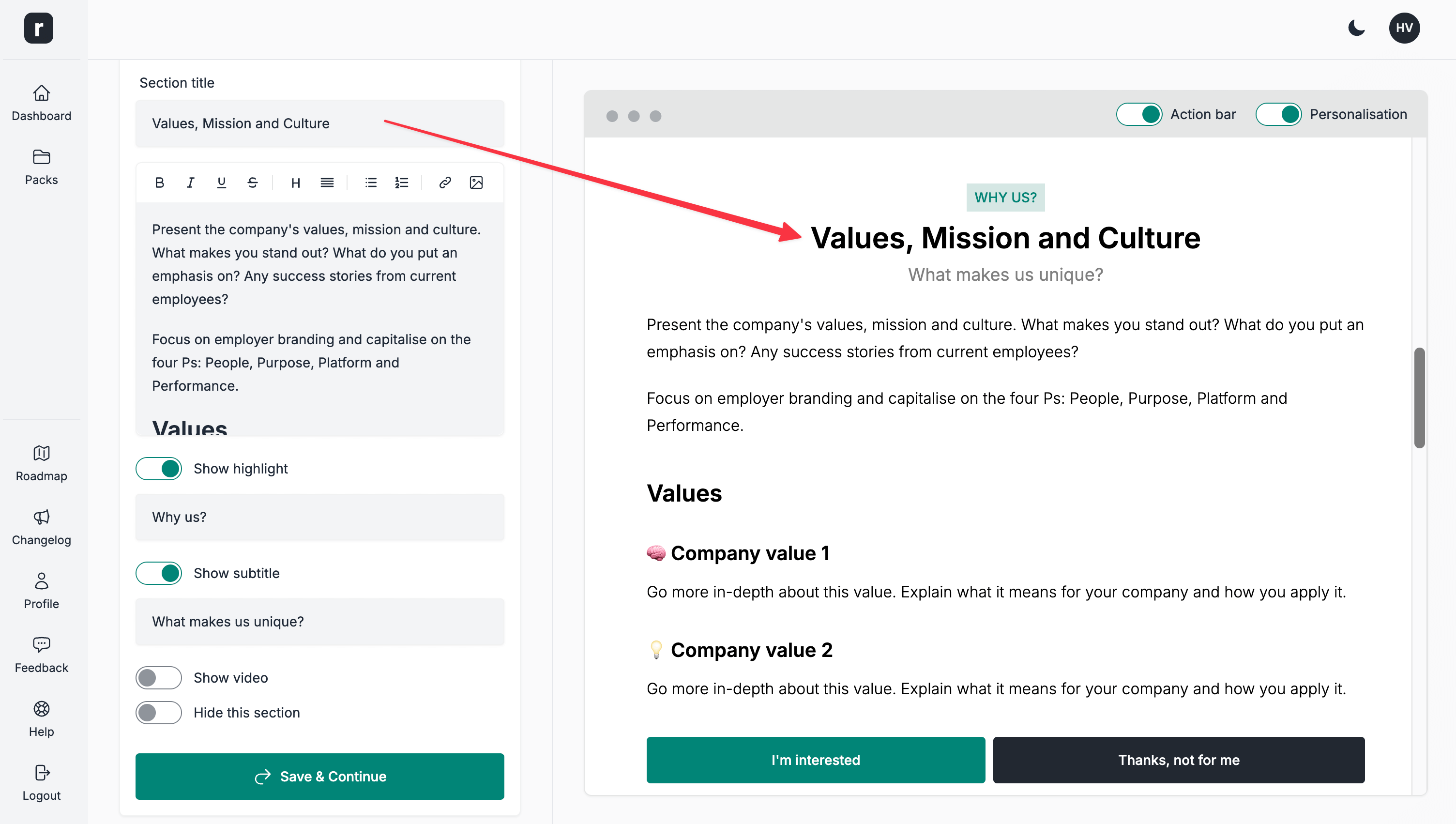
Content
- Type: Long text input (WYSIWYG editor)
- Usage: Add the section's content
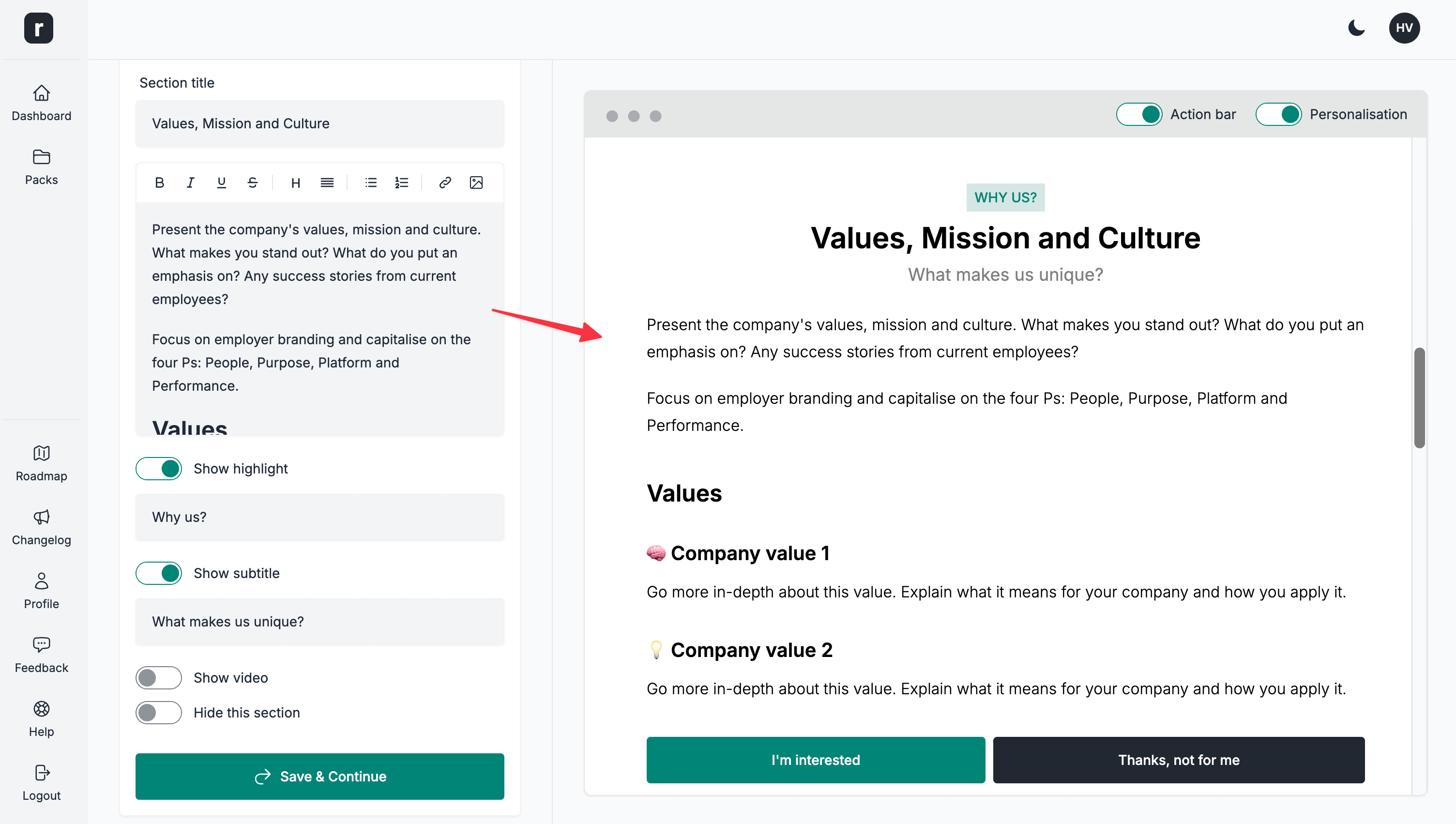
Highlight
- Type: Toggle/Short text input
- Usage: When enabled, you can add a short highlighted label above the section title
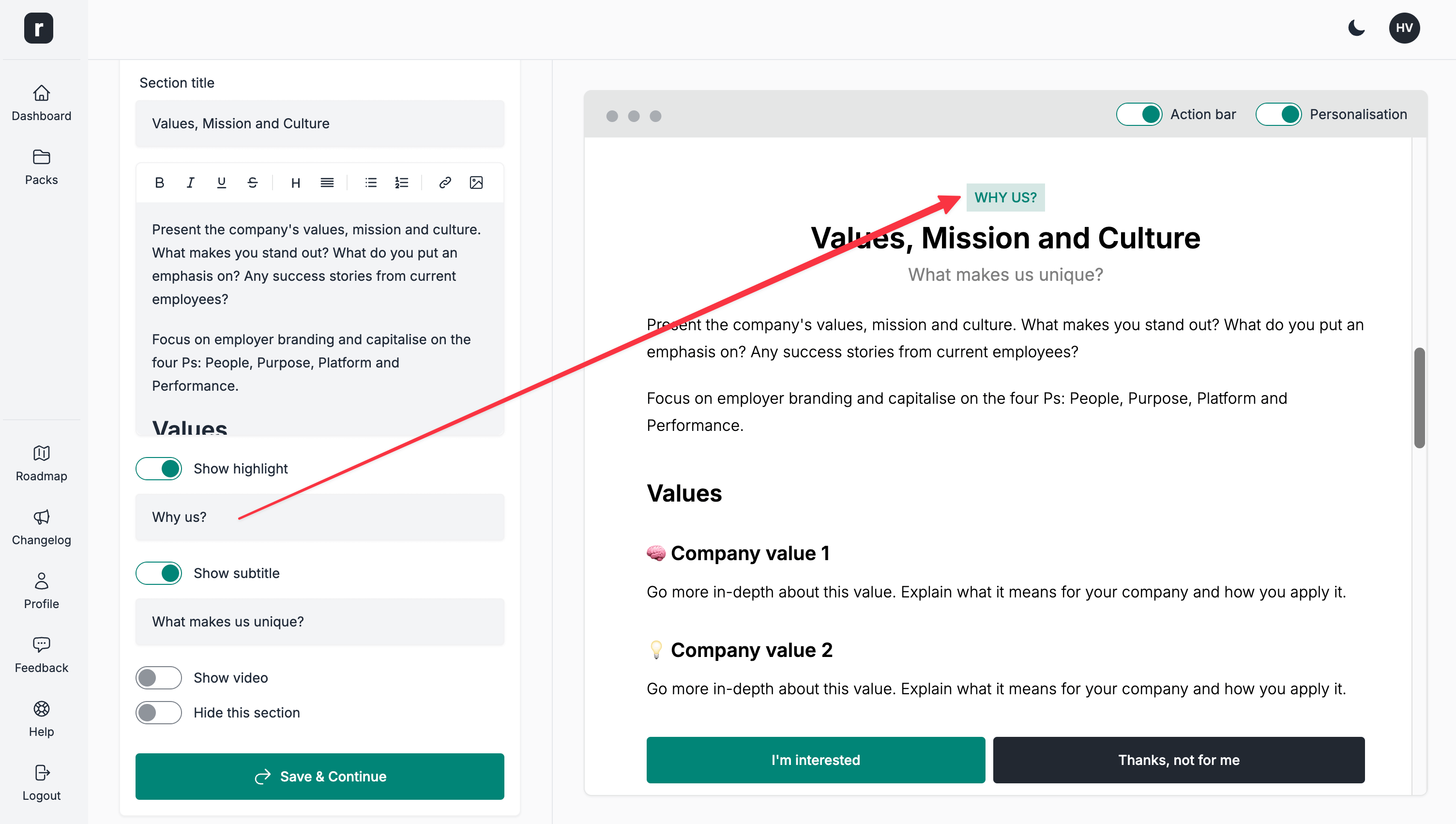
Subtitle
- Type: Toggle/Short text input
- Usage: When enabled, you can add a subtitle to the section
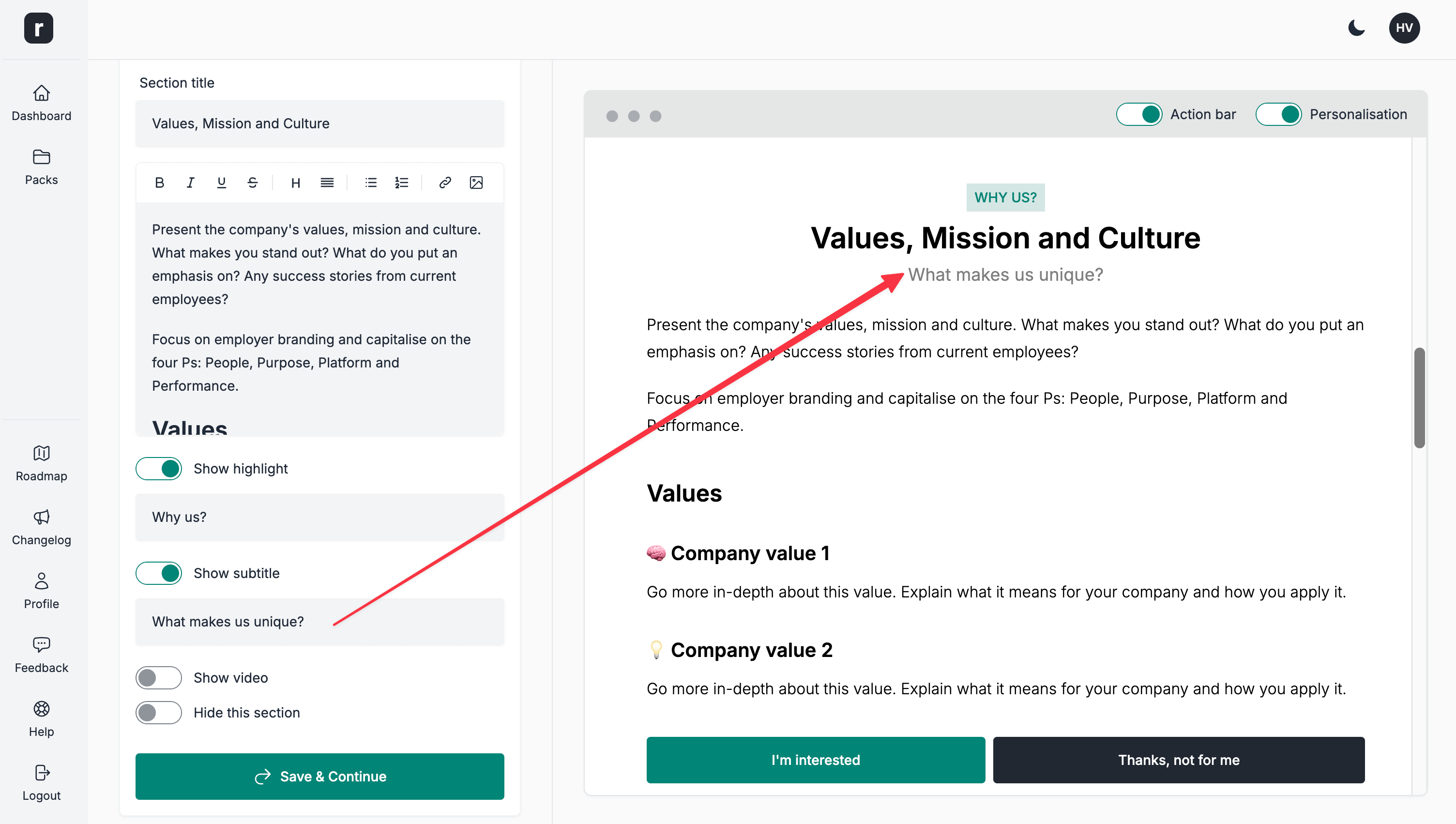
Video
- Type: Toggle/Short text input
- Usage: When enabled, you can add a video to the section. To find out more about adding video, accepted formats and embeddings, please have a look at the Add a video Help Article.
Hide section
- Type: Toggle
- Usage: When enabled, it will hide the entire section. This is disabled by default.
Misc
- To ease the UI overload on the editor page, all sections can be collapsed/expanded by clicking on the section's title
- While changes are immediately visible in the preview, you must save each section in part for the changes to be applied on public candidate pack page. You can save the section by clicking the
Save & Continuebutton.
Special sections
The Greeting section has its own rich-text editor for the welcome message and a button to hide it. It does not provide the standard title, highlight, subtitle or video options. The Job Facts section has its own visibility controls, while Interview Process and FAQ use custom mechanisms to add content.
- To learn more about the
Interview Processsection's content have a look at Add an interview stage Help Article. - To learn more about the
FAQsection's content have a look at Add a FAQ item Help Article.