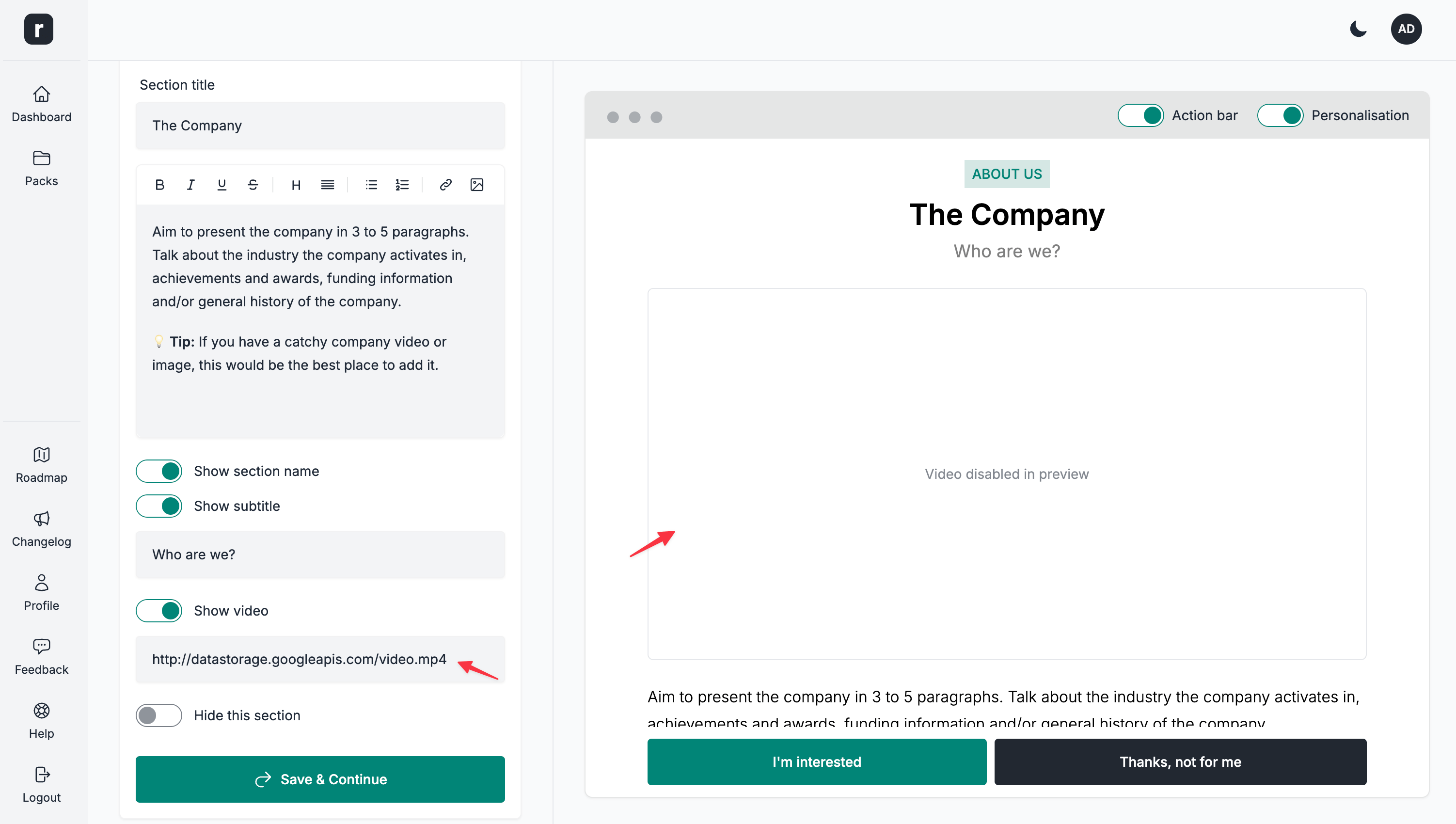
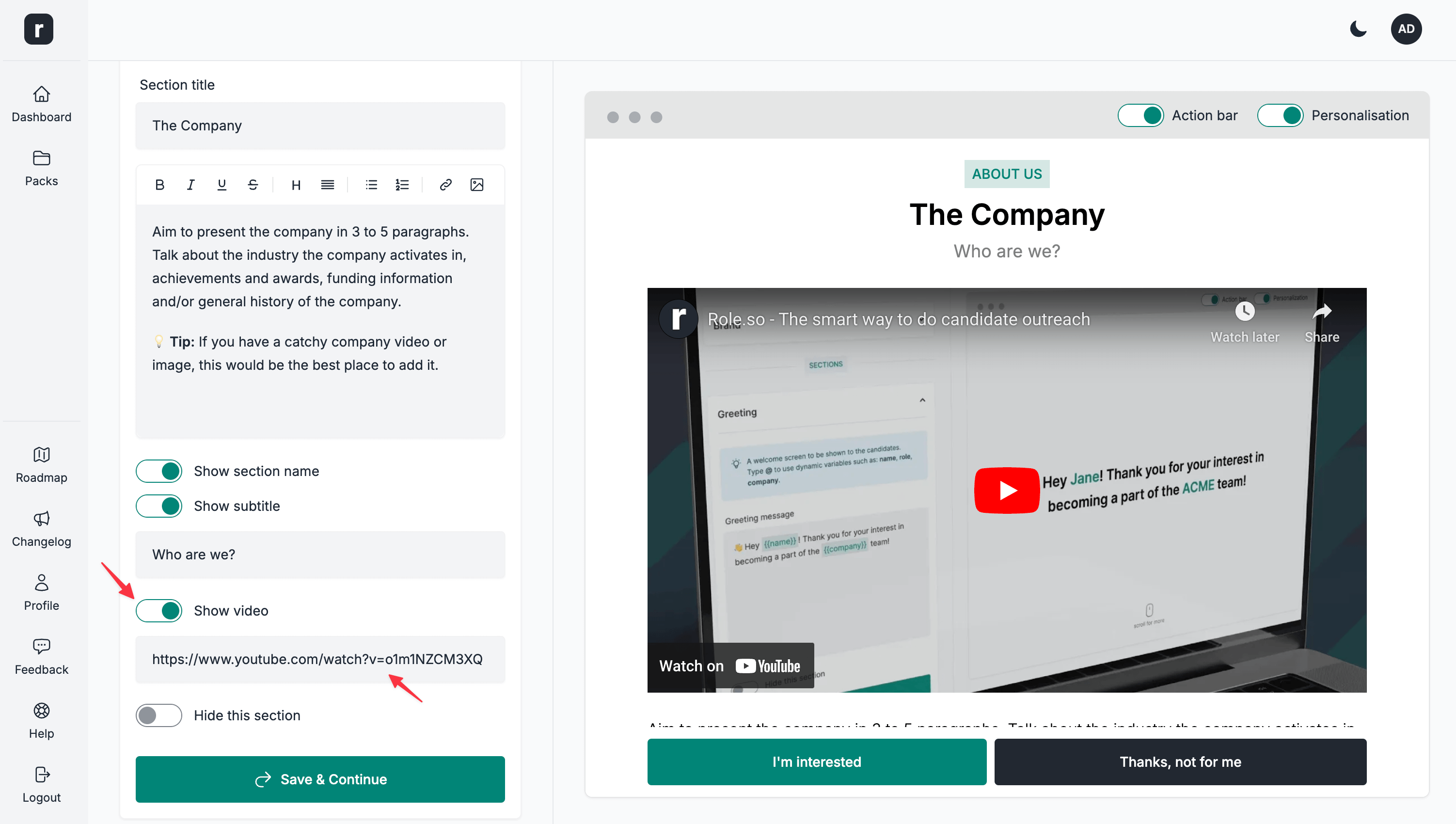
Add a video
You can add a video to all the candidate pack sections, except Greeting, Interview Process and FAQ.
To add a video
- Expand the section where you'd like to add the video
- Enable the
Show videooption - Add the video URL you'd like to insert into this section (we recommend using a YouTube, Loom or Vimeo video link)
- When you are done editing the section, click the
Save & Continuebutton
Loom videos
If you're adding a Loom video, please make sure to use the Loom embed link.
To grab the embed link, all you have to do is copy the link of the Loom video and change share to embed in the URL.
-
Example share link
https://www.loom.com/share/e5b8c04bca094dd8a5507925ab887002
-
Example embed link
https://www.loom.com/embed/e5b8c04bca094dd8a5507925ab887002
Other formats
The editor also supports *.mp4 video files, however these need to be hosted on your own servers.
To add a *.mp4 video/file, the steps are identical to adding a YouTube video.
The only caveat is that when adding an mp4 *.video, the Preview section won't load the video preview, but rather it will load a video placeholder. However, once you save the candidate pack (and publish it, if you haven't already), the video will be visible on the public candidate pack page.
This video preview caveat also applies to Vimeo video links.