Add a custom domain
Adding a custom domain or subdomain
-
Navigate to your custom domain settings
-
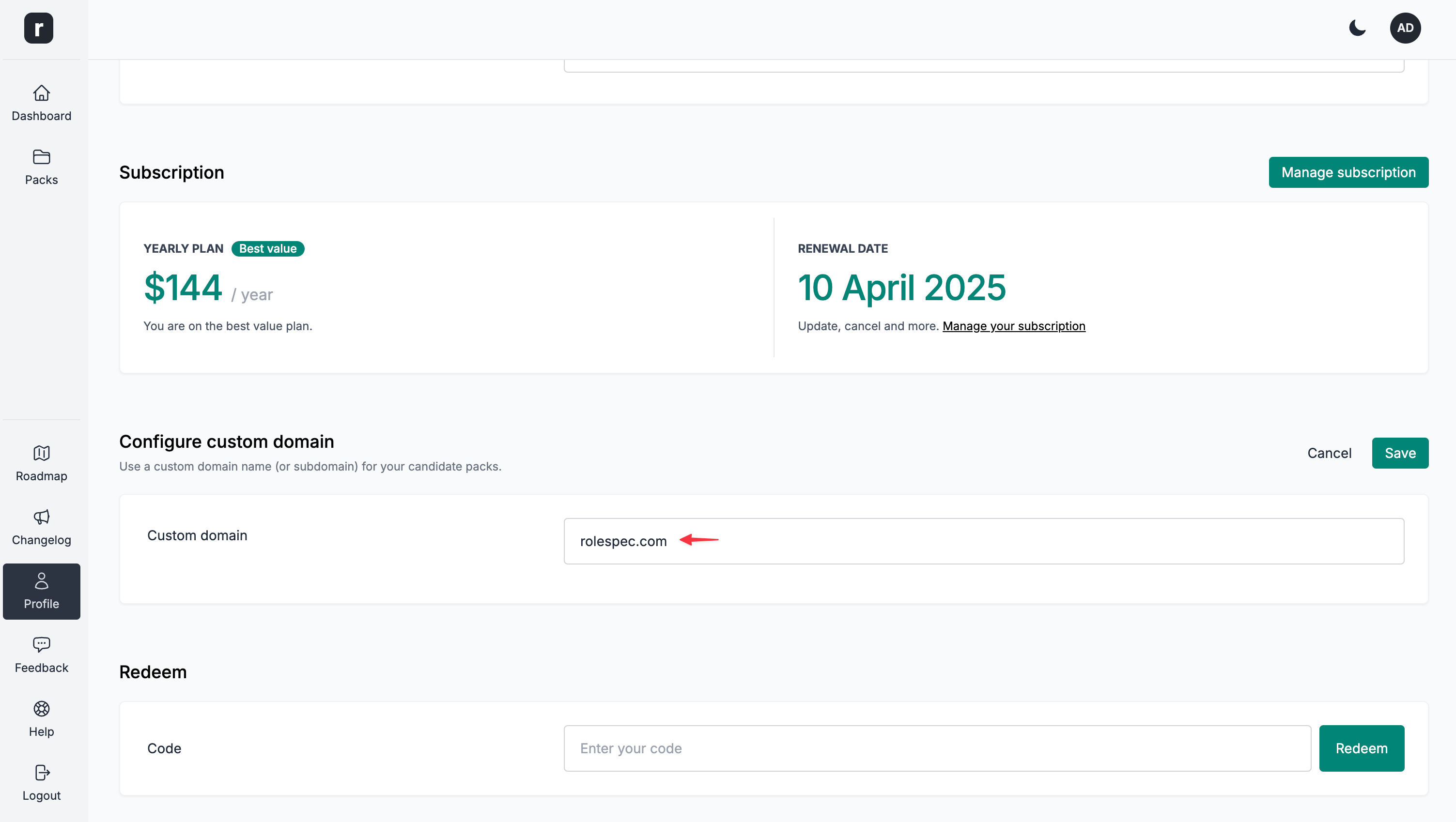
Type in your custom domain
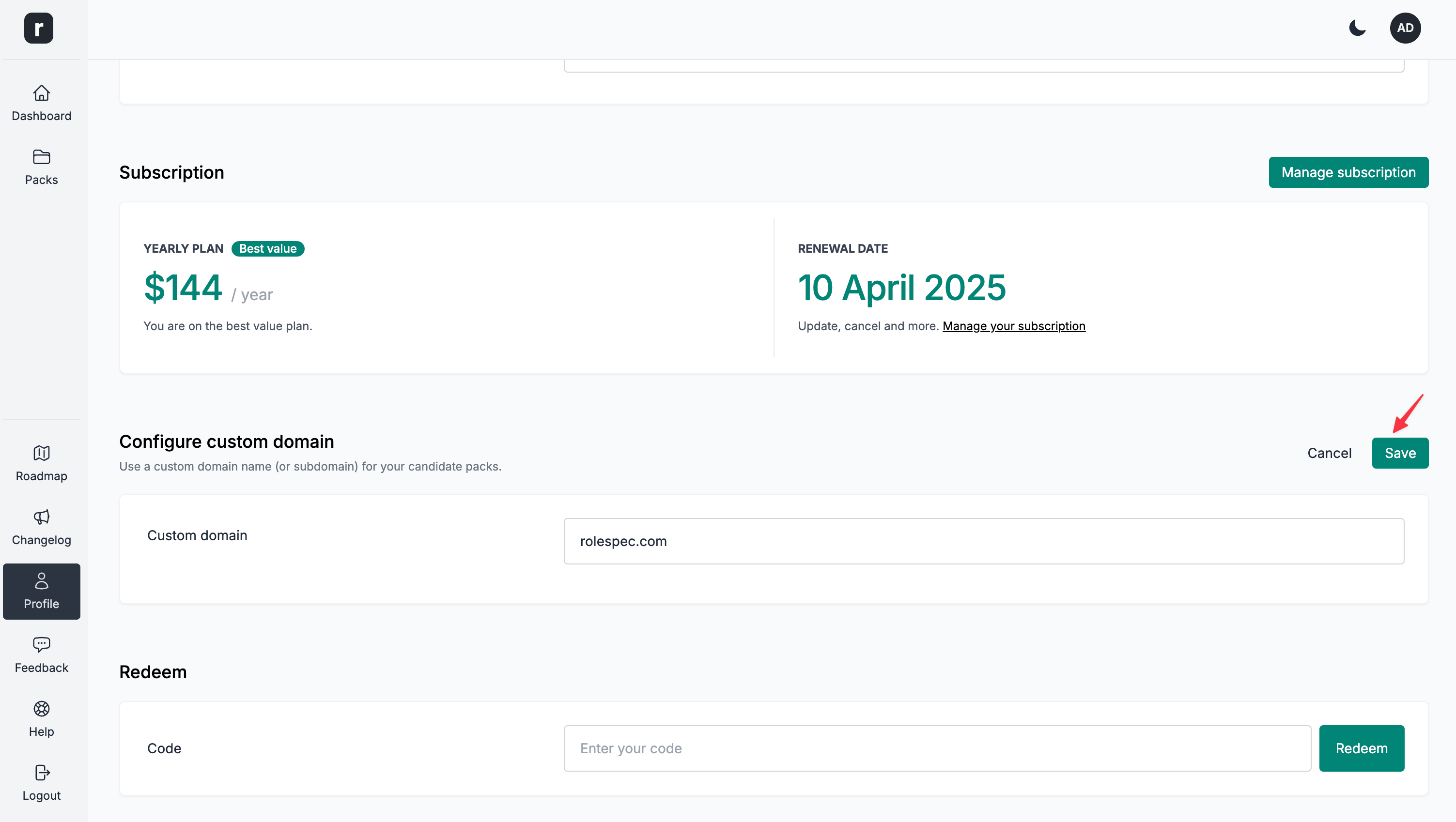
- Click the
Savebutton
- You'll be presented with an IP address to point your domain to (DNS A record)
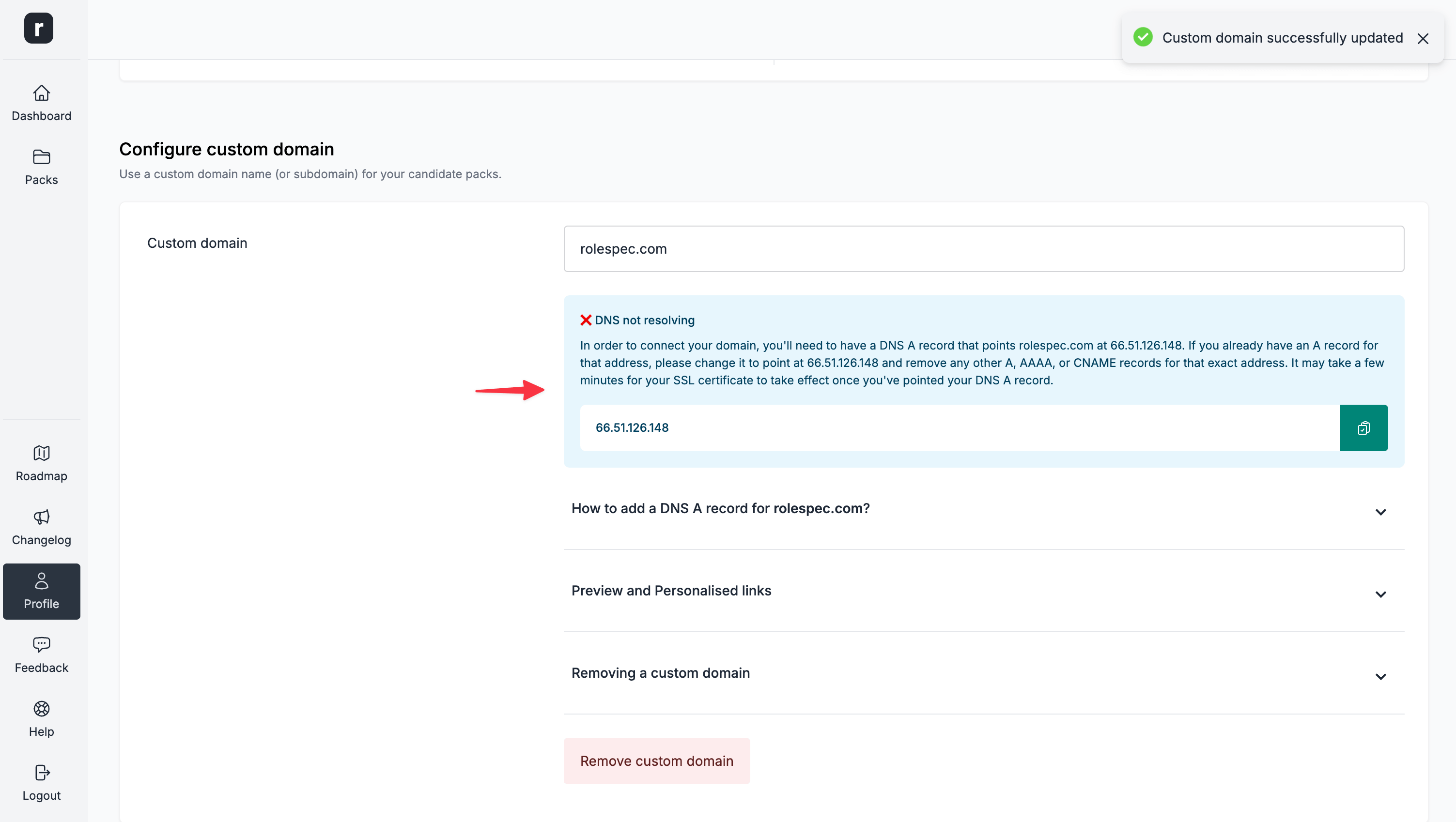
How to add a DNS A record?
- Log in to your domain registrar
- Find the option to manage the DNS settings for your domain
- Add a new record
- Choose the A record from the options
- Enter
@for the host and the IP address you are presented with for the value field - Set the
TTLvalue to300(or can be left on automatic) - Save your changes
Preview and Personalised links
Once you configure your custom domain, all links to candidate packs (preview links, personalised link generation, etc.) will automatically switch to your custom domain.
With that in mind, please make sure the custom domain is set up correctly before sending out a link to a candidate pack.
While the links are automatically replaced to ease the process for you, the base role.so domain will still work behind the scenes. If you run into any issues you can always fall back to the default role.so domain.
Removing a custom domain
Once you remove a custom domain, the platform will switch back to the base role.so domain.
⚠️ This means that the custom domain links will stop working!
Please be mindful of this and if you decide to remove your custom domain, don't forget to update the links in all the places where these have been used.